
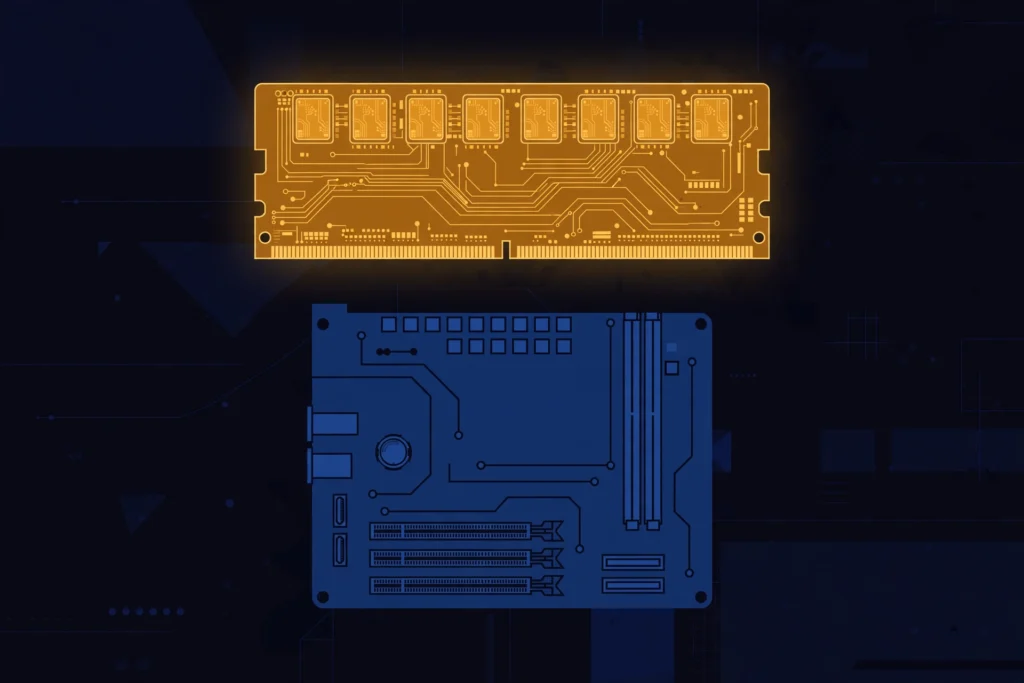
RAM is your PC’s short-term memory. If it’s full, everything slows down. Before you spend money on an upgrade, check what you actually have — it takes less than a minute.
Check it on Windows
- Press Ctrl + Shift + Esc to open Task Manager.
- Click the Performance tab, then Memory.
- You’ll see how much RAM you have, how fast it is, and how much is in use right now.
You can also find the total under Settings > System > About, next to “Installed RAM.”
How much is enough?
- 8 GB — fine for browsing, email, and office work.
- 16 GB — the comfortable spot for most people, including gaming.
- 32 GB — for heavy video editing, 3D work, or running virtual machines.
Do you actually need more?
Open Task Manager while you do your normal work. If memory usage sits near 90% or higher and the PC feels sluggish, more RAM will help. If usage stays low, your money is better spent elsewhere — usually an SSD upgrade, which makes the whole PC feel faster.
Check first, buy second. That’s the whole tip.