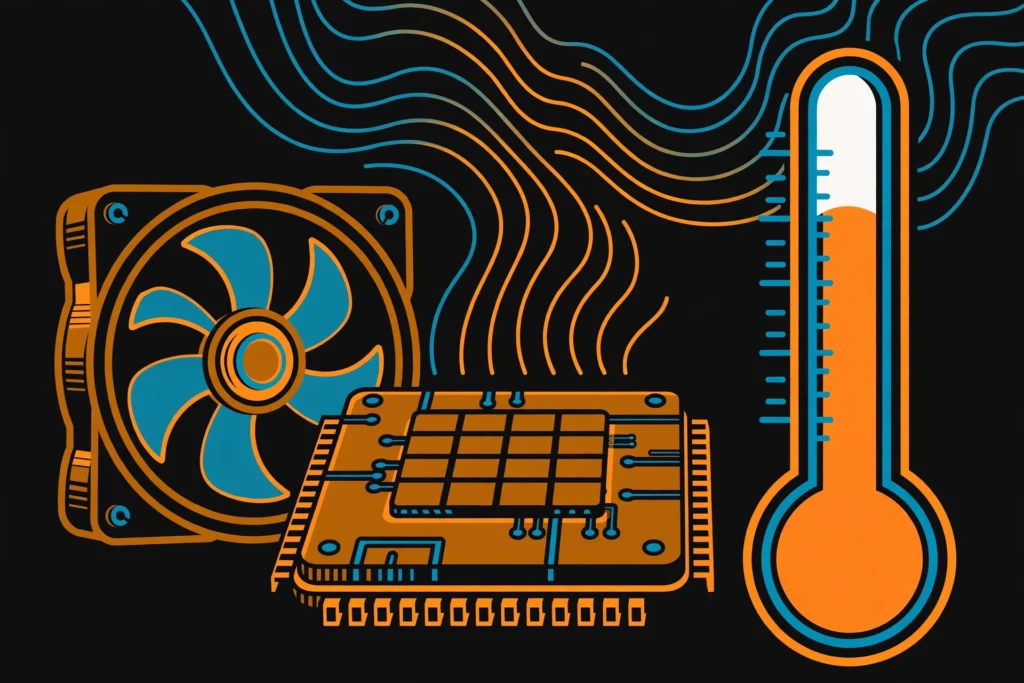
When a PC gets too hot, it protects itself by slowing down. That’s called thermal throttling — and it’s why a computer can feel fine for ten minutes, then get sluggish, loud, and stuttery. Checking the temperature takes a couple of minutes and tells you whether heat is your problem.
Check it on Windows
- Press Ctrl + Shift + Esc to open Task Manager.
- Click the Performance tab, then GPU — Windows shows the graphics card temperature right there.
- For the CPU temperature, install a free tool like HWMonitor or Core Temp, open it, and look for the CPU or Core readings.
Check twice: once while the PC is sitting idle, and once while it’s working hard — a game, a video export, or whatever normally makes the fans spin up.
What the numbers mean
- 30–50°C at idle — normal for most desktops and laptops.
- 60–85°C under load — normal while gaming, editing, or doing other heavy work.
- 90°C or higher, or climbing fast — too hot. That’s throttling territory, and it’s time to act.
Exact limits vary by chip, and laptops usually run hotter than desktops. The pattern matters more than one number: steady and stable is fine, always pinned near the top is not.
If it’s running hot
- Unblock the vents: keep a desktop’s sides clear, and use a laptop on a hard, flat surface — not a bed or couch.
- Clean the dust out: power the PC off, then blow dust from fans and vents with short bursts of compressed air.
- Listen to the fans: a fan that never spins, rattles, or grinds is a fan that needs replacing.
- Still hot after that? The thermal paste between the chip and its cooler may have dried out — a repair-shop job if you’re not comfortable opening the case.
Heat is silent until it isn’t. Check the temperature first, before you blame the PC — or start shopping for a new one.