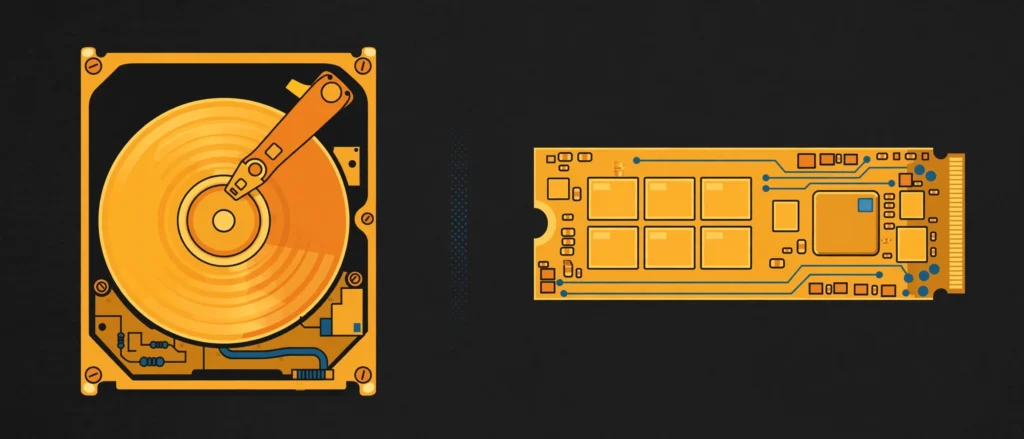
An SSD makes a PC feel fast. An HDD makes it feel old — even when everything else in the machine is fine. You don’t need to open the case to find out which one you have. Windows will tell you in under a minute.
Check it in Task Manager
- Press Ctrl + Shift + Esc to open Task Manager.
- Click the Performance tab.
- Click Disk 0 (your main drive, usually C:).
- Look in the top-right corner — it says SSD or HDD right next to the drive name.
Another way: Optimize Drives
- Press the Windows key and type Optimize Drives, then open it.
- Find your C: drive in the list.
- Check the Media type column — it says Solid state drive or Hard disk drive.
What it means
- You have an SSD: good — your drive is not the bottleneck. Slowdowns are more likely RAM, startup apps, or a nearly full drive.
- You have an HDD: that spinning drive is almost certainly the slowest part of your PC. Swapping it for an SSD is the single biggest speed upgrade most older PCs can get — faster boot, faster program opens, no new computer needed.
No tools, no guessing, and now you know whether a drive upgrade is even worth your money.