If your PC takes forever to get going after you sign in, startup apps are the usual reason. Every program that launches itself at sign-in adds a few more seconds — and they add up.
See what is launching
- Press Ctrl + Shift + Esc to open Task Manager.
- Click the Startup apps tab (the speedometer-style icon on the left in Windows 11).
- Look at the Startup impact column — it rates each app Low, Medium, or High.
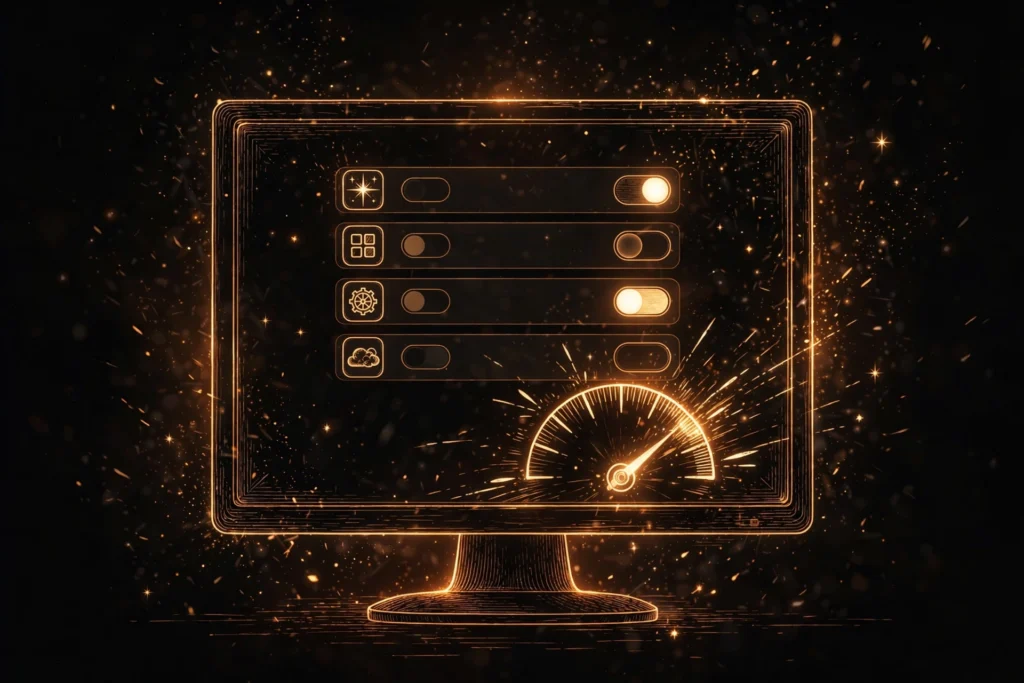
Turn off what you do not need
- Right-click an app you do not need the moment you sign in.
- Choose Disable.
- Repeat for the other High-impact apps you recognize.
Good candidates: game launchers, music apps, printer helpers, and updaters for programs you open only once in a while. They still work fine when you open them yourself — they just stop opening themselves.
Leave these alone
- Security software: your antivirus should start with Windows.
- Anything you do not recognize: look the name up before disabling it — some entries are drivers or hardware helpers your PC needs.
- Cloud backup you rely on: if you use OneDrive or another backup app to keep files safe, leave it on.
Disable two or three High-impact apps, restart, and feel the difference. You can always turn one back on the same way if you miss it.